
Marketplace
Marketplace Integrations allow you to connect your online stores and marketplaces directly to the platform for streamlined shipment processing and order management.
This feature supports popular e-commerce platforms such as WooCommerce, Magento, PrestaShop, Decathlon, and other supported marketplaces.
By connecting your marketplace accounts, shipment creation, tracking updates, and fulfillment processes can be automated to improve operational efficiency.
Open the Marketplace page from the left-side menu or directly at transportal.parcelinternational.com/user/marketplace.
Step 1: Create a marketplace connection
- Open the Marketplace Integrations section from the side menu.
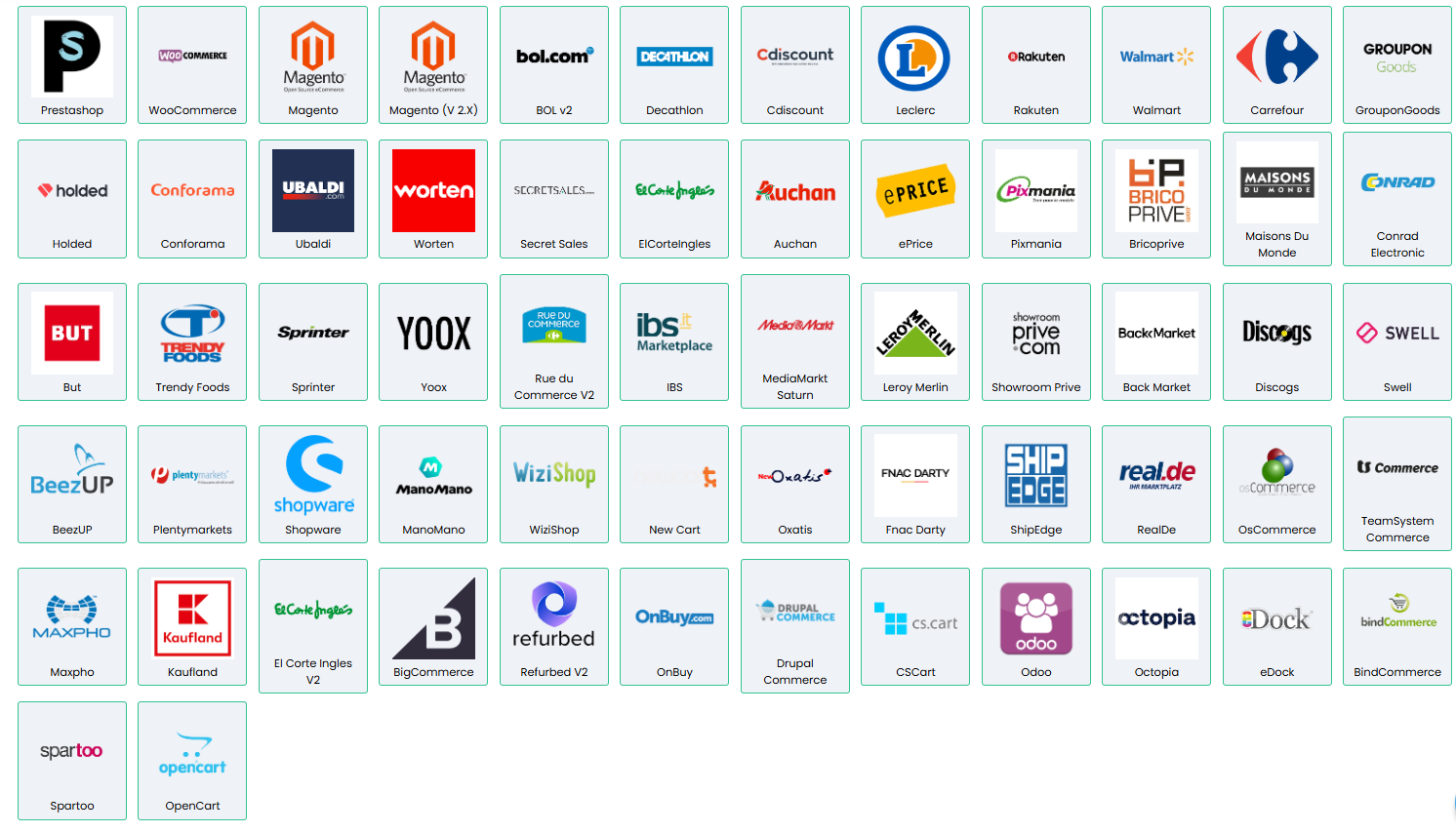
- Select your marketplace platform from the Add a Marketplace grid.
- Supported platforms may include:
- WooCommerce
- Magento
- PrestaShop
- Decathlon
- Other supported integrations
- After selecting a platform, a configuration window will appear.
Store Details
- Check the authentication details by selecting the marketplace you want to integrate. Then enter the required authentication credentials provided by the marketplace platform.
Default Service Level
- Select the preferred default shipping service.
- The selected service level is automatically applied to imported marketplace orders.
- Example service levels include:
- Standard Drop-off
- Express Drop-off
- Standard Pickup
- Express Pickup

Automation Settings
Immediate Shipment Add
- Enable this option to automatically create shipments immediately after a new marketplace order is placed.
- If this option is disabled, marketplace shipments can be reviewed manually from the Marketplace Shipments UI, where you can edit shipment details if needed and manually approve the shipment before processing.

Update Tracking Numbers
- Enable this option to automatically:
- Update tracking numbers back to the marketplace
- Mark marketplace orders as shipped
- Synchronize shipment tracking details
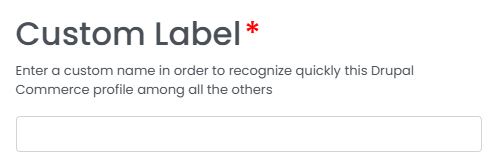
Custom Label
- Assign a custom name to the marketplace connection.
- Custom labels help identify different stores or regions when managing multiple marketplace accounts.
- Example labels:
- My International Store
- Woo-UK
- Woo-US
Step 2: Manage integrated marketplaces
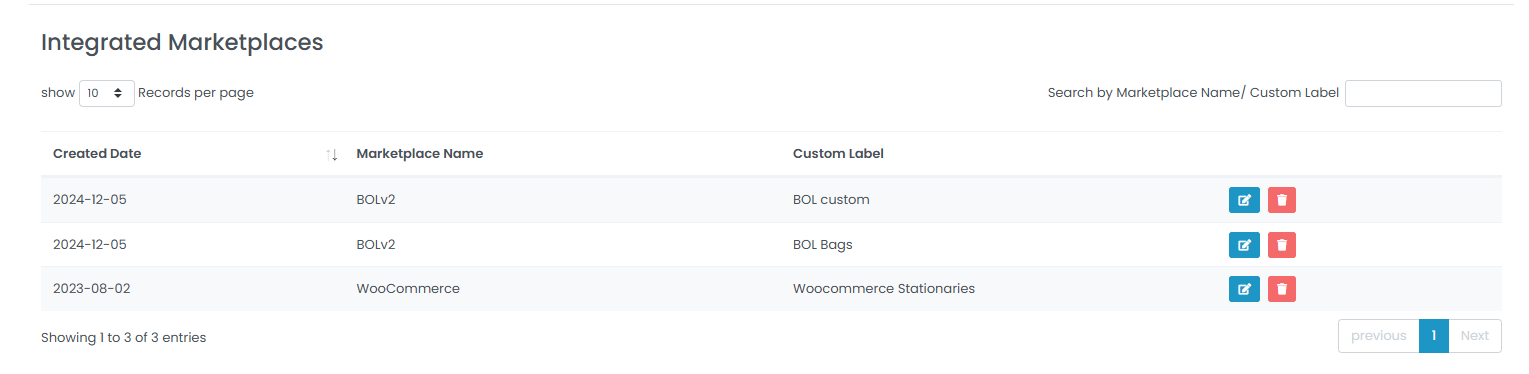
- Connected marketplaces are displayed in the Integrated Marketplaces table.
- The table provides an overview of all active marketplace integrations.
Search & Filter
- Use the search bar to find marketplaces by:
- Marketplace name
- Custom label
Edit Marketplace
- Click the blue pencil icon to update marketplace connection settings.
- You can modify:
- Store URL
- API credentials
- Automation settings
- Service levels
- Custom labels
Delete Marketplace
- Click the red trash icon to disconnect the marketplace from your account.
- Deleting a marketplace connection stops future order synchronization.
Tips & Tricks
- Always use HTTPS-enabled store URLs for secure and reliable synchronization.
- Most modern marketplaces require active SSL certificates and may reject HTTP connections.
- After configuring a new marketplace integration, create a test order to verify synchronization and shipment creation.
- Use unique custom labels when managing multiple stores to avoid operational confusion.
- Enable automatic tracking updates to reduce manual order fulfillment work.
- Review API credentials carefully if marketplace synchronization fails.
- Keep marketplace plugins, APIs, and store platforms updated to maintain compatibility.
- Use different default service levels for different stores or regions when required.
This guide is about the customer portal. No account yet? Create one for free.
Still stuck?
Our support team is here for you 24/7.