
Send Requests
The Send Requests page provides a centralized location for managing and tracking all email-related requests generated throughout the platform.
It allows you to review communication history, monitor support conversations, and track the progress of active and completed requests.
Open the Send Requests from the left-side menu or directly at transportal.parcelinternational.com/email/sendRequests.
Step 1: Review operational guidelines
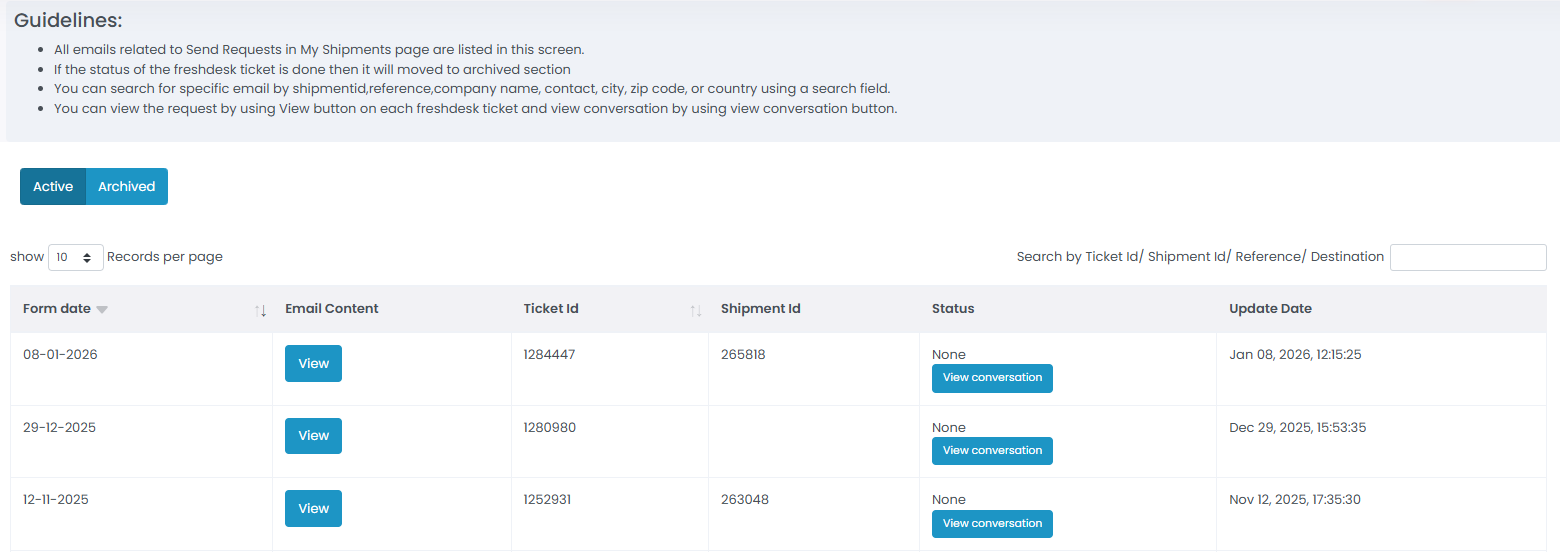
- The Send Requests page helps organize and monitor all communication generated from shipment forms, requests, and support-related actions.
Centralized Records
- The page displays all emails and communication associated with your submitted requests.
- This provides a complete history of request-related correspondence in one location.
Automatic Archiving
- Once a Freshdesk ticket status is marked as completed or done, the request is automatically moved to the Archived section.
- This helps keep the Active request list organized and easier to manage.
Advanced Search
- Use the search field to quickly locate requests using:
- Shipment ID
- Reference number
- Company name
- Contact person
- City
- Zip code
- Country
Step 2: Manage request records
- The request table allows you to monitor and interact with submitted requests.
View Request Content
- Click the View button under the Email Content column to review the original request details and submitted message content.
Track Conversations
- Click the View Conversation button under the Status column to review the full communication thread between you and the support team.
- Conversation history may include:
- Support replies
- Investigation updates
- Additional information requests
- Resolution details
Ticket Details
- Each request record displays important tracking information including:
- Form Date
- Ticket ID
- Shipment ID
- Last Update Date
Step 3: Switch between active and archived requests
- Use the toggle buttons located at the top-left corner of the page to switch between:
- Active Requests
- Archived Requests
Active Requests
- Displays currently open or pending support requests.
Archived Requests
- Displays completed or resolved support requests that have been automatically archived.
Tips & Tricks
Use Search Filters Efficiently
- Use Shipment IDs or reference numbers for faster request lookup.
Monitor Active Requests Regularly
- Check active requests frequently for support updates or additional action requirements.
Review Conversation History
- Always review previous conversation messages before responding to avoid duplicate communication.
Keep Reference Numbers Available
- Include shipment references or Ticket IDs when contacting support for quicker assistance.
Use Archived Requests for History Tracking
- Archived requests can be useful for reviewing previously resolved shipment or support issues.
This guide is about the customer portal. No account yet? Create one for free.
Still stuck?
Our support team is here for you 24/7.