
Return Shipments
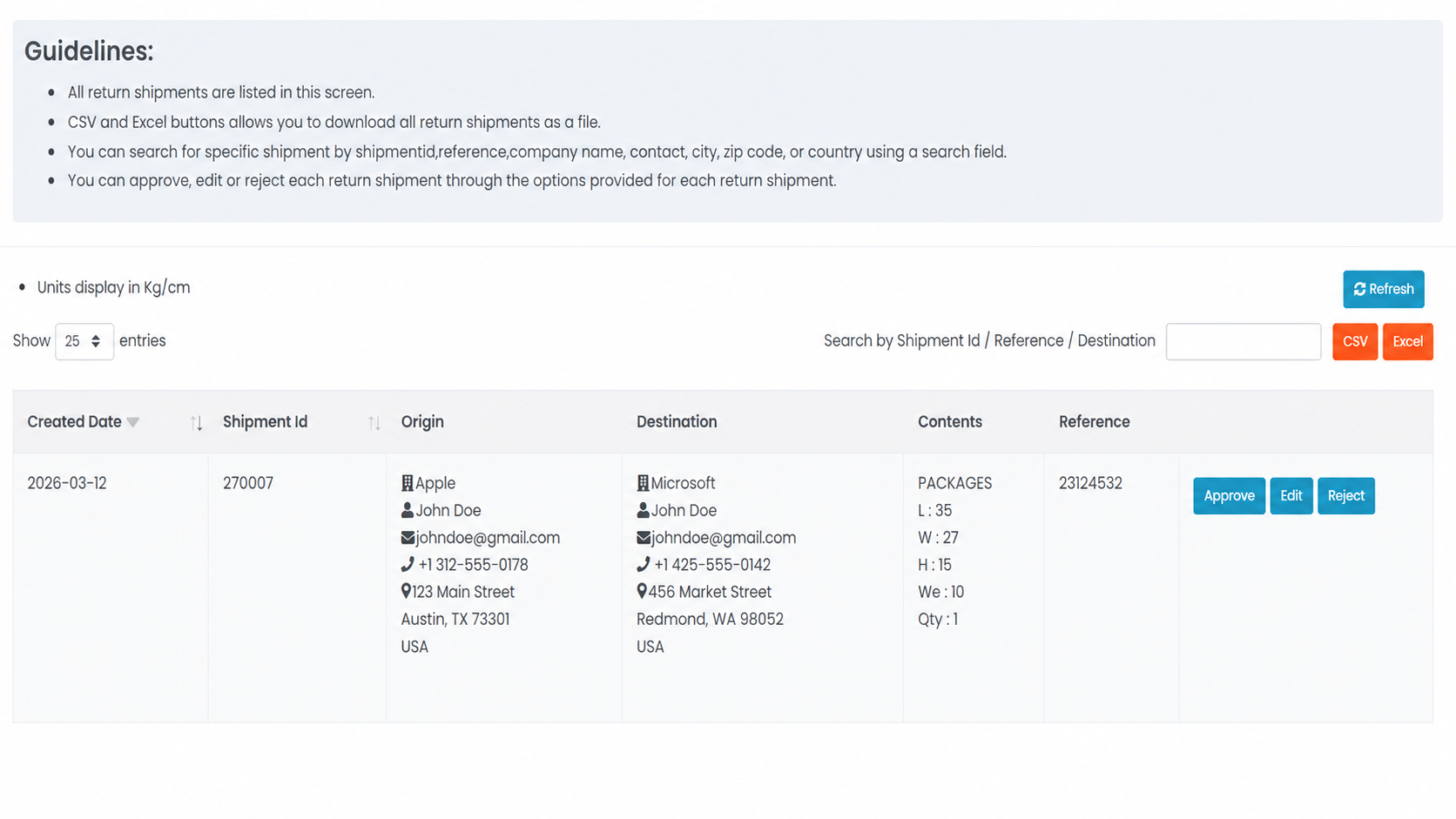
The Return Shipments page provides a centralized dashboard for managing all shipment return requests.
This interface allows you to monitor, approve, reject, and edit return shipments while maintaining full visibility into return logistics and shipment information.
Open the Return Shipments from the left-side menu or directly at transportal.parcelinternational.com/return/index.
Step 1: Review operational guidelines
- The Return Shipments dashboard helps organize and manage all return shipment requests created within the platform when the Checking Manually return handling option is enabled in the Profile settings.
- This option can be configured from the Profile UI under the return shipment handling preferences section.

Centralized Tracking
- All return shipment requests initiated within the platform are displayed on this page when the Checking Manually option is enabled for return shipment handling.
*
- If automatic return handling is enabled instead, return shipments will be created automatically without requiring manual approval from this dashboard.
- The dashboard provides visibility into the latest return shipment activity and request statuses.
Data Export
- Use the following export buttons to download return shipment data:
- CSV
- Excel
- Exported files can be used for:
- Reporting
- Operational analysis
- Financial tracking
- External record keeping
Advanced Search
- Use the search field to quickly locate return shipments using:
- Shipment ID
- Reference Number
- Destination Information
Measurement Units
- All shipment dimensions and weight information are displayed using:
- Kilograms (Kg)
- Centimeters (cm)
Step 2: Review and manage return requests
- The return shipment table provides detailed information about each return request.
Shipment Details
- Displays shipment-related information including:
- Created Date
- Shipment ID
- Customer Reference Number
Origin Information
- Displays sender details including:
- Company Name
- Contact Person
- Email Address
- Phone Number
Destination Information
- Displays receiver details related to the return shipment.
Shipment Contents
- Displays package and shipment content details including:
- Length (L)
- Width (W)
- Height (H)
- Weight (We)
- Quantity (Qty)
Step 3: Process return shipment requests
- Use the available action buttons on the right side of the table to manage return requests.
Approve Return Request
- Click the Approve button to authorize and proceed with the return shipment.
Reject Return Request
- Click the Reject button to decline the return request.
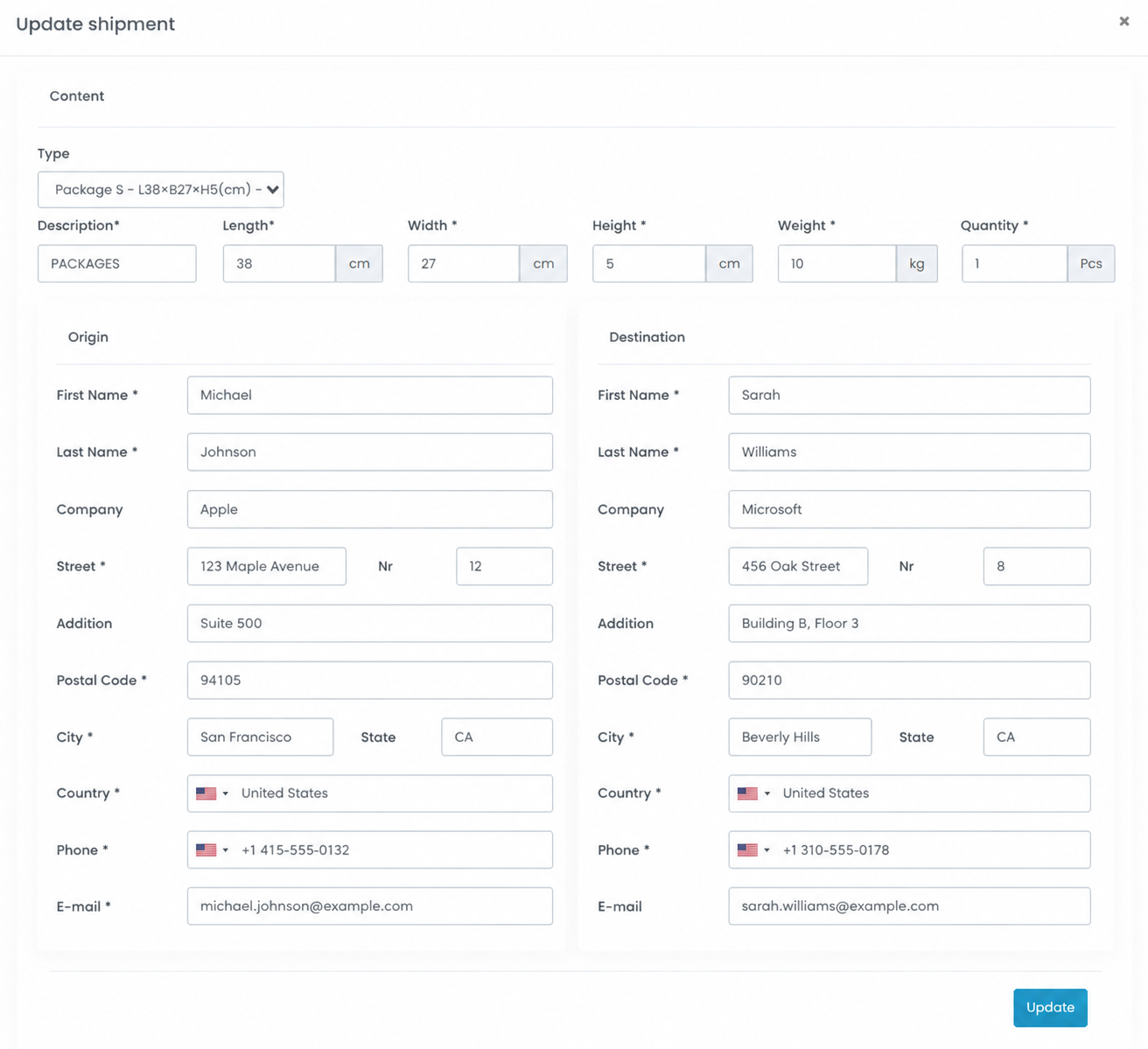
Edit Return Request
- Click the Edit button to update shipment details including:
- Shipment dimensions
- Weight information
- Contact details
- Shipment information
Step 4: Refresh shipment data
- Click the Refresh button located at the top-right corner of the page to retrieve the latest return shipment statuses and incoming requests.
- Regular refreshing helps ensure you are viewing the most up-to-date return information.
Tips & Tricks
Review Return Requests Regularly
- Monitor return requests frequently to avoid processing delays.
Verify Shipment Dimensions
- Ensure shipment weights and dimensions are accurate before approving return requests.
Use Export Features for Reporting
- Export return shipment records regularly for operational and financial reporting.
Use Search Filters Efficiently
- Use Shipment IDs and reference numbers for faster return request lookup.
Refresh the Dashboard Frequently
- Regularly refresh the dashboard when handling large return volumes to ensure new requests are visible.
Review Customer Details Carefully
- Double-check sender and receiver information before approving or editing return shipments.
This guide is about the customer portal. No account yet? Create one for free.
Still stuck?
Our support team is here for you 24/7.