
Reports
The Reports section serves as a centralized archive for all Excel and CSV files generated within the platform.
Whenever you export or download data from different modules, the generated files are stored here for easy access and future retrieval.
The Reports page helps you manage exported shipment data, invoice reports, operational exports, and other generated files from across the system.
Open the Report page from the left-side menu or directly at transportal.parcelinternational.com/shipment/reports
Step 1: View generated reports
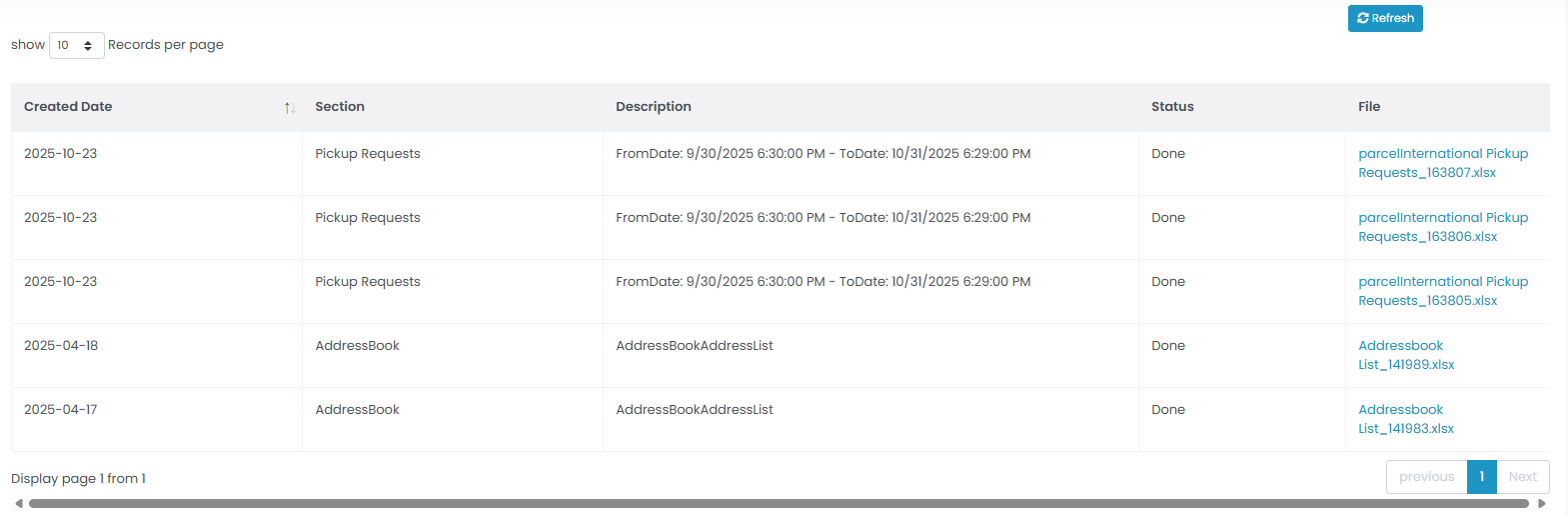
- The reports table displays the history of generated export files.
- Reports may include exports from:
- Shipments
- Invoices
- Address Book
- Marketplace integrations
- Other platform modules
Step 2: Understand report details
The reports table contains the following information:
Created Date
- Displays the exact date and time when the report file was generated.
Section
- Indicates the platform module or section where the export originated.
- Example sections may include:
- Shipment
- Invoice
- Address Book
- Marketplace
Description
- Displays the report or export name.
- Example:
- Export_ShipmentList
- Invoice_Report
- AddressBook_Export
Status
- Indicates the current report generation status.
- Common statuses include:
- Done - report generation completed successfully
- Processing - report generation is still in progress
- Failed - report generation encountered an error
File
- Contains the downloadable file link.
- Click the file link to download the generated Excel or CSV report.
Step 3: Refresh the report list
- Use the Refresh button located at the top-right corner of the page.
- Refreshing updates the report list and checks whether recently requested exports are ready for download.
Tips & Tricks
- Large exports may take several minutes to generate depending on the amount of data.
- Use the Refresh button periodically after requesting large reports.
- Download important reports regularly and store backups when required.
- Review report statuses to identify failed or incomplete exports.
- Use descriptive report names to quickly identify exported files.
- Reports are useful for operational analysis, accounting, shipment audits, and customer reporting.
This guide is about the customer portal. No account yet? Create one for free.
Still stuck?
Our support team is here for you 24/7.