
Notifications
Stay updated on your shipment journey by customizing how and when notifications are sent to you, the sender, and the receiver.
The notification matrix allows you to control alerts for different shipment events and recipients. Open the Notifications page from the left-side menu or directly at transportal.parcelinternational.com/user/notifications.
Step 1: Configure alert preferences
- Open the Notifications settings section from the side menu.
- Use the notification matrix to enable or disable alerts for different shipment events.
- Each row represents a shipment status update.
- Each column represents a recipient or notification delivery method.
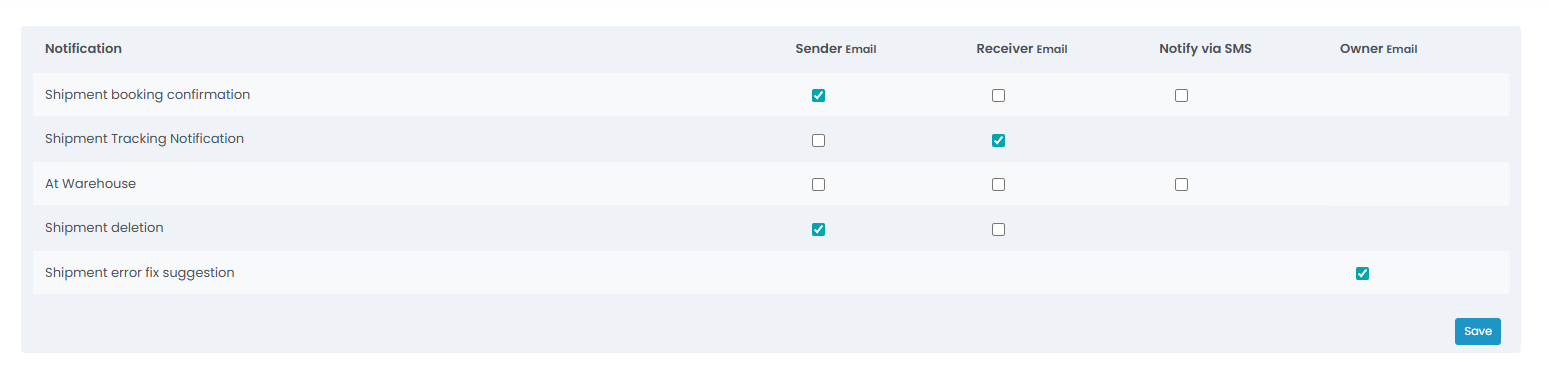
Step 2: Configure recipient notification settings
Sender & Receiver Email
- Enable these options to send automated email updates directly to the sender and receiver contacts provided during shipment booking.
- These notifications help customers stay informed about shipment progress and delivery updates.
Notify via SMS
- Enable SMS notifications to send real-time shipment alerts to mobile devices.
- SMS notifications are especially useful for:
- Shipment booking confirmations
- At warehouse updates
- Delivery progress notifications
Owner Email
- The Owner Email setting allows the account owner to receive internal shipment notifications.
- This includes:
- Shipment error fix suggestions
- Shipment issue notifications
- Operational alerts
- These alerts help resolve shipment issues quickly.
Step 3: Understand notification types
Booking & Tracking
- Keep all parties informed from the moment a shipment is created until the shipment is in transit or delivered.
Warehouse Updates
- Notify recipients when a shipment reaches a warehouse or sorting facility.
Deletions & Errors
- Send alerts when a shipment is cancelled, deleted, or requires corrections due to validation or shipment issues.
Tips & Tricks
- If you manage a high volume of shipments, consider disabling Sender Email notifications for yourself while keeping Receiver Email enabled for customers.
- Enable SMS notifications for critical shipment updates requiring fast action.
- Always keep Shipment Error Fix Suggestions enabled for Owner Email notifications.
- Regularly review notification settings to ensure shipment communications match your operational workflow.
- Use email notifications for detailed shipment tracking updates and SMS for urgent shipment status alerts.
This guide is about the customer portal. No account yet? Create one for free.
Still stuck?
Our support team is here for you 24/7.