
My shipments
View and manage created shipments, track shipment progress, download shipment labels, export shipment details, and request pickups.
Open the My shipments page from the left-side menu or directly at transportal.parcelinternational.com/shipment/shipmentdashboard.
Step 1: Select the shipment view
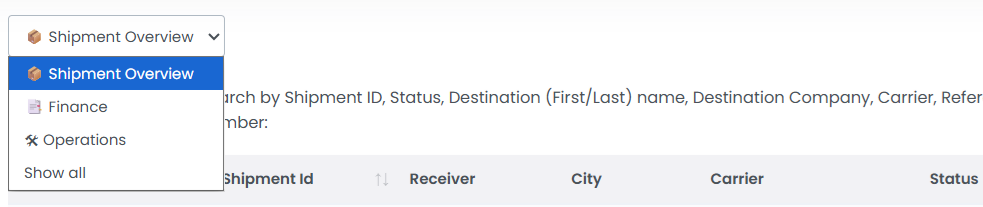
- Use the dropdown filter at the top-left to switch shipment views.
- Shipment Overview displays shipment details and tracking progress.
- Finance displays shipment-related financial details.
- Operations displays shipment operational information.
- Select the appropriate view to focus on the information you need.
Step 2: Search and locate shipments
- Use the search field to quickly find shipments.
- Search using Shipment ID, Tracking Number, Reference, Carrier, or shipment status.
- You can also search by receiver name or company name.
- The shipment list updates automatically based on your search.

Step 3: Download shipment labels
- Select one or multiple shipments using the checkbox column.
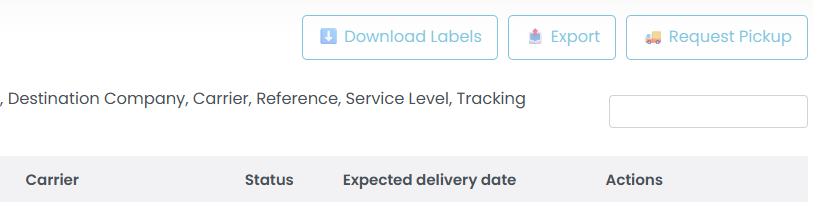
- Click Download Labels to download shipment labels.
- Download labels for printing or save them for later use.
- Only selected shipments will be included in the download.
Step 4: Export shipment details
- Select the required shipment(s) from the shipment table.
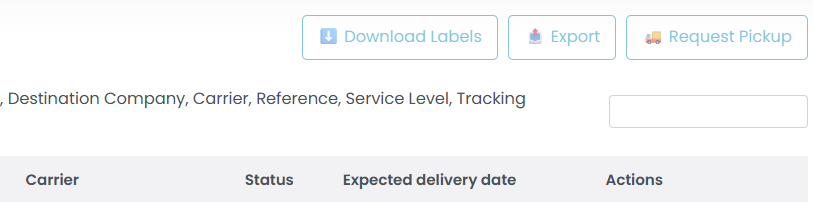
- Click Export to download shipment details as an Excel file.
- Use exported files for reporting or shipment tracking.
- Multiple shipments can be exported together.
Step 5: Request shipment pickup
- Select shipment(s) that require pickup.
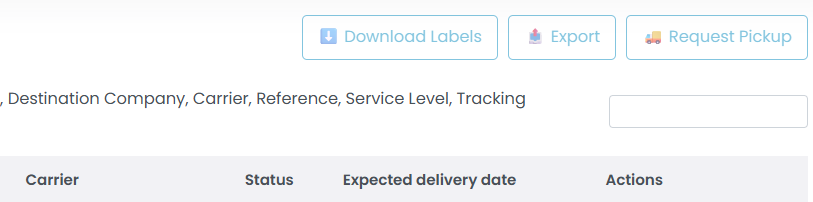
- Click Request Pickup to create a pickup request.
- Pickup is available only for supported shipments.
- Shipments with an existing pickup request cannot be requested again.
- Ensure shipment details are correct before requesting pickup.
Step 6: Use shipment actions
- Use the Actions column to access shipment-related functions.
- Recreate Shipment — create a new shipment using the same shipment details.
- Track Shipment — view shipment tracking updates and delivery progress.
- Download Label — download or reprint shipment labels.
- View Invoice — access shipment invoice details.

Step 7: Review shipment details and management options
- Selecting a shipment from the dashboard opens a side panel with shipment details and quick management actions.
Quick Actions
- Use Re-create to duplicate the shipment.
- Use Online Tracking to view the latest shipment status.

Document Management
- Download the Label or Commercial Invoice directly from the panel.
- The commercial invoice can also be edited, uploaded, or downloaded.
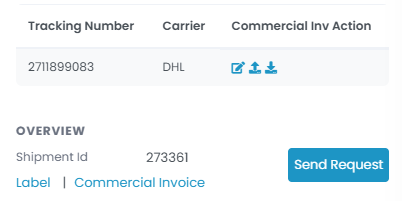
Shipment Overview
- Review important shipment details including:
- Shipment ID
- Sender and Receiver information
- Shipment Status
- Tracking Number
- Pickup Date
- Pickup ID
- Service Level
Financial Information
- View shipment-related financial details including:
- Rate Price
- Total Amount
- Shipment Value
Package Details
- View shipment package information including:
- Total number of items
- Weight
- Dimensions
Support & Actions
- Use Send Request to create a support inquiry related to the shipment.

- Additional footer actions include:
- Upload Documents
- Edit Shipment
- Delete Shipment

Tips & Tricks
- Use Shipment Overview, Finance, or Operations views to quickly find relevant information.
- Search using Tracking Number, Reference, or Shipment ID for faster results.
- Select multiple shipments to download labels or export shipment details in bulk.
- Use Recreate Shipment when sending similar shipments again.
- Regularly monitor shipment statuses to identify delays or exceptions quickly.
This guide is about the customer portal. No account yet? Create one for free.
Still stuck?
Our support team is here for you 24/7.