
My Printer
Streamline your shipment workflow by setting up direct printing.
Once configured, shipment labels can be printed instantly without manual print dialogs or additional confirmation windows. Open the My Printer page from the left-side menu or directly at transportal.parcelinternational.com/user/printer.
Step 1: Set up the printer connection
- The platform uses QZ Tray software to communicate with your printer.
- Follow the steps below to configure the connection.
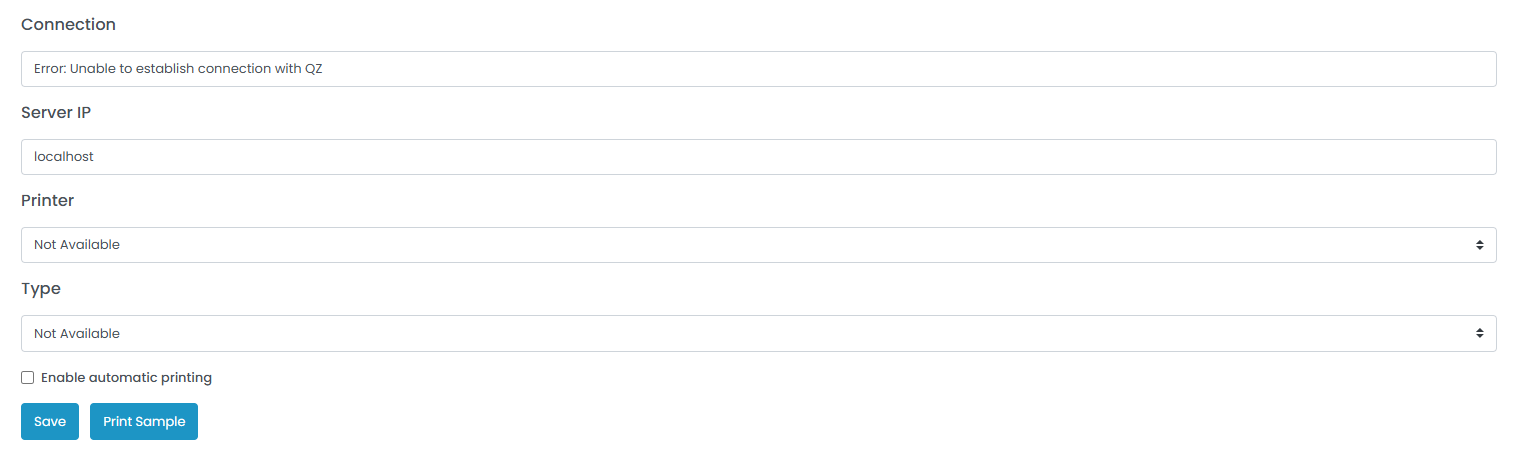
Install QZ Tray
- Download and install the QZ Tray software on your computer. https://qz.io/download/.
- QZ Tray is required for the website to communicate directly with your printer.
- Ensure the software is installed before continuing with printer configuration.
Server IP
- Enter the IP address of the computer connected to the printer.
- If the printer is directly connected to your own computer, leave this field empty or use localhost.
Printer
- Select the preferred printer from the available printer list.
Printer Type
- Select the correct printer type or printing technology.
- Examples include:
- Thermal printer
- Laser printer
- PDF printer
- Selecting the correct type ensures labels are formatted correctly.
Enable Automatic Printing
- Enable this option if shipment labels should print automatically immediately after shipment booking confirmation.
Step 2: Troubleshoot connection issues
If you see the error message:
Unable to establish connection with QZ
Please verify the following:
Software Status
- Ensure the QZ Tray application is currently running on your computer.
- Check your system tray or taskbar to confirm the software is active.
Browser Blockers
- Disable ad blockers, popup blockers, and browser tracking protection for the platform website.
- Some browser extensions may prevent QZ Tray from connecting properly.
Printer Drivers
- Ensure the latest official printer drivers are installed.
- Download drivers directly from the printer manufacturer's website.
Tips & Tricks
- Always install the correct printer drivers for your specific printer model.
- Use the official manufacturer website when downloading printer drivers.
- Select the correct printer type to ensure shipment labels print with the correct formatting and dimensions.
- Use the Print Sample button after saving your settings to test alignment and print quality.
- For most single-user setups, using localhost or leaving the Server IP empty provides the most stable connection.
- If QZ Tray does not appear immediately after installation, refresh the browser page to reinitialize the connection.
- Keep QZ Tray running in the background while using direct printing features.
- Thermal printers are generally recommended for shipment label printing because they provide faster and clearer label output.
This guide is about the customer portal. No account yet? Create one for free.
Still stuck?
Our support team is here for you 24/7.