
Invoices
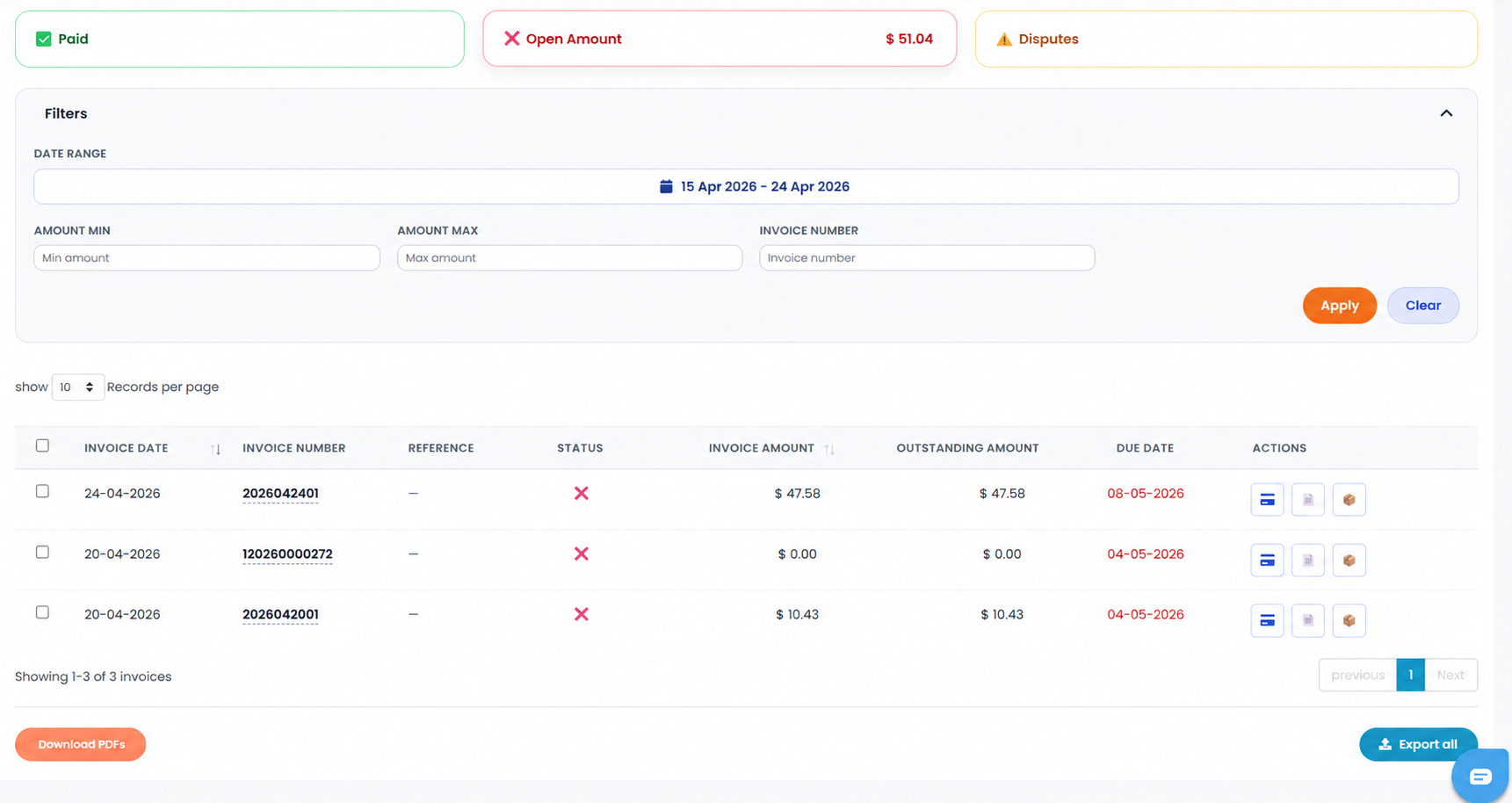
The Invoices section provides a complete overview of your billing history, allowing you to monitor invoice payments, manage outstanding balances, download invoice documents, and submit billing disputes.
Open the Invoices from the left-side menu or directly at transportal.parcelinternational.com/invoice/index.
Step 1: Use invoice status filters
- The invoice dashboard provides quick status filters to help organize and review invoices.

Paid
- Displays all invoices that have been fully paid and settled.
Open Amount
- Displays invoices with outstanding balances that still require payment.
- The total outstanding balance amount is also displayed in this section.
Disputes
- Displays invoices that currently have active or submitted dispute requests.
Step 2: Use advanced search and filtering
- The Filters section allows you to refine invoice search results.

Date Range
- Filter invoices using a specific invoice date range.
Amount Range
- Enter minimum or maximum invoice amounts to locate invoices within a selected value range.
Invoice Number
- Search directly using the invoice number.
Filter Actions
- Click the Apply button to run the filter search.
- Click the Clear button to reset all filter fields.
Step 3: Manage invoices
- The invoice table displays detailed invoice information including:
- Invoice Date
- Invoice Number
- Invoice Status
- Outstanding Amount
- Due Date
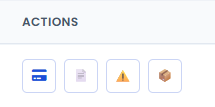
Pay Invoice
- Click the credit card icon to pay outstanding invoices.
Download Invoice
- Click the document icon to download the invoice PDF.
Open Dispute Form
- Click the warning triangle icon to open the invoice dispute form.
Download Shipment Details
- Click the shipment or box icon to download shipment-related details connected to the invoice.
Bulk Downloads
- Use the following buttons to download invoice data in bulk:
- Download PDFs
- Export All

Step 4: Submit an invoice dispute
- Follow the steps below to create and submit an invoice dispute request.
Locate the Invoice
- Find the invoice you want to dispute from the invoice table.
- Under the Actions column, click the warning triangle icon to open the dispute form.
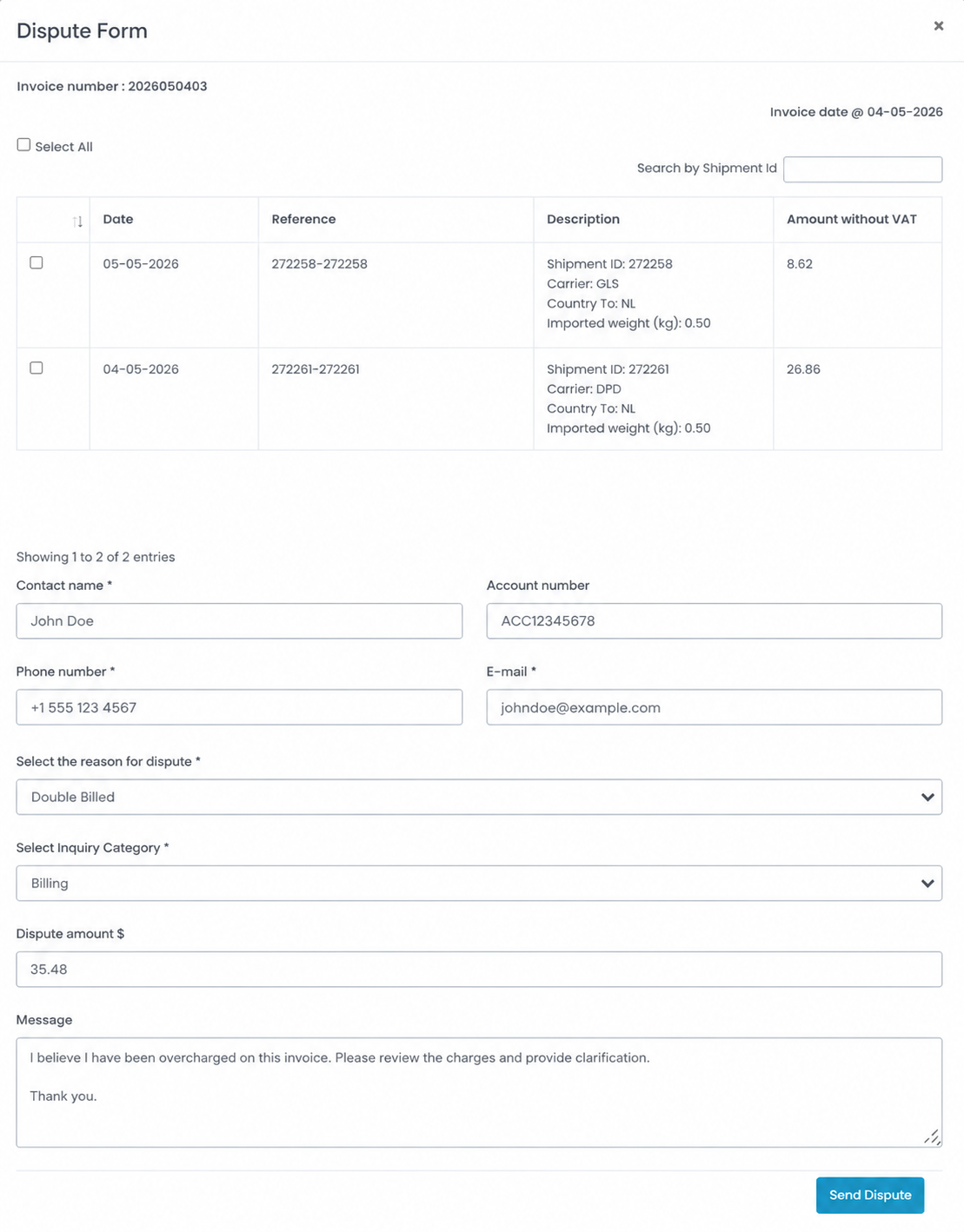
Select Shipments
- Select the shipment line items you want to dispute by checking the corresponding checkboxes.
Enter Contact Information
- Complete the required contact details including:
- Contact Name
- Phone Number
- Email Address
- Account Number
Enter Dispute Details
Select Reason for Dispute
- Choose the most appropriate dispute reason from the dropdown list.
Select Inquiry Category
- Select the relevant inquiry category related to the dispute.
Dispute Amount
- Enter the exact invoice amount being disputed.
Message
- Provide a detailed explanation describing the reason for the dispute.
Submit the Dispute
- After completing all required fields and reviewing the entered information, click the Send Dispute button to submit the dispute request.
Tips & Tricks
Review Open Balances Regularly
- Monitor outstanding invoices frequently to avoid delayed payments.
Use Filters for Faster Searches
- Use invoice numbers and date filters to quickly locate specific invoices.
Download Important Invoices
- Keep local copies of invoice PDFs and shipment details for accounting and audit purposes.
Provide Detailed Dispute Information
- Clear explanations and accurate dispute amounts help speed up dispute investigations.
Verify Shipment Details Before Disputing
- Review shipment charges carefully before submitting invoice disputes.
Monitor Dispute Statuses
- Check the invoice dashboard regularly for dispute updates and responses.
This guide is about the customer portal. No account yet? Create one for free.
Still stuck?
Our support team is here for you 24/7.