
Cost centers
The Cost centers section allows you to create and manage additional billing and shipment departments within your account.
Using cost centers helps organize shipments, billing records, and operational workflows more efficiently.
Open the Cost centers from the left-side menu or directly at transportal.parcelinternational.com/user/costcenter.
Step 1: Create a new cost center
- To create a new cost center, click the + Add Cost Center button located at the top-right corner of the dashboard.
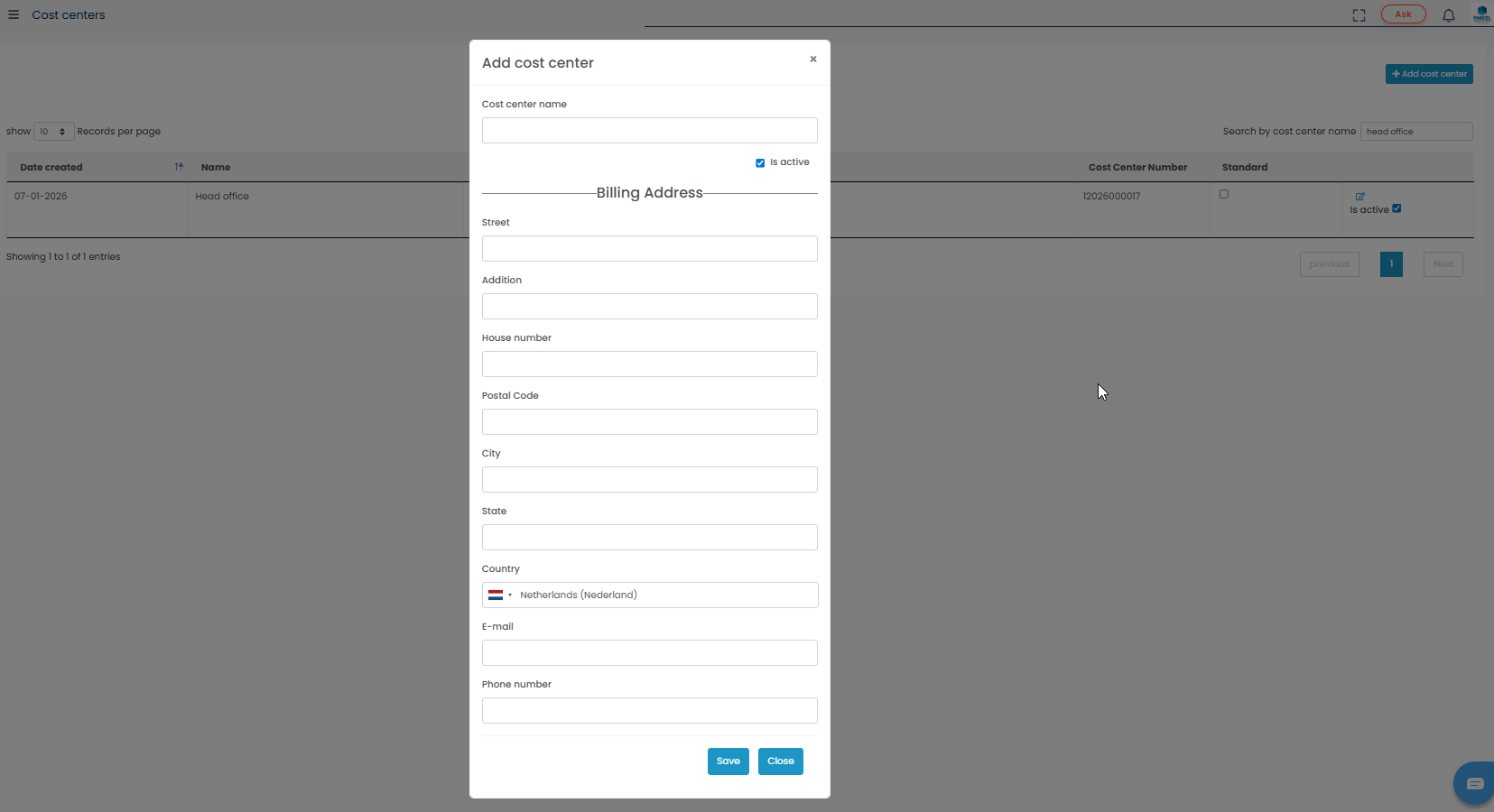
Cost Center Name
- Enter a descriptive name for the department, office, warehouse, or business unit.
- Example names may include:
- Finance Department
- Rotterdam Warehouse
- UK Operations
Active Status
- Enable the Is Active checkbox to make the cost center immediately available for shipment usage.
Billing Address Details
- Enter the billing address information associated with the cost center including:
- Street
- House number
- City
- Postal code
- Country
Contact Information
- Enter the dedicated contact details for the cost center including:
- Email address
- Phone number
- These details may be used for billing and operational communication.
Save the Cost Center
- After entering all required information, click the Save button to create the new cost center.
Step 2: Manage existing cost centers
- The dashboard provides a complete overview of all registered cost centers.
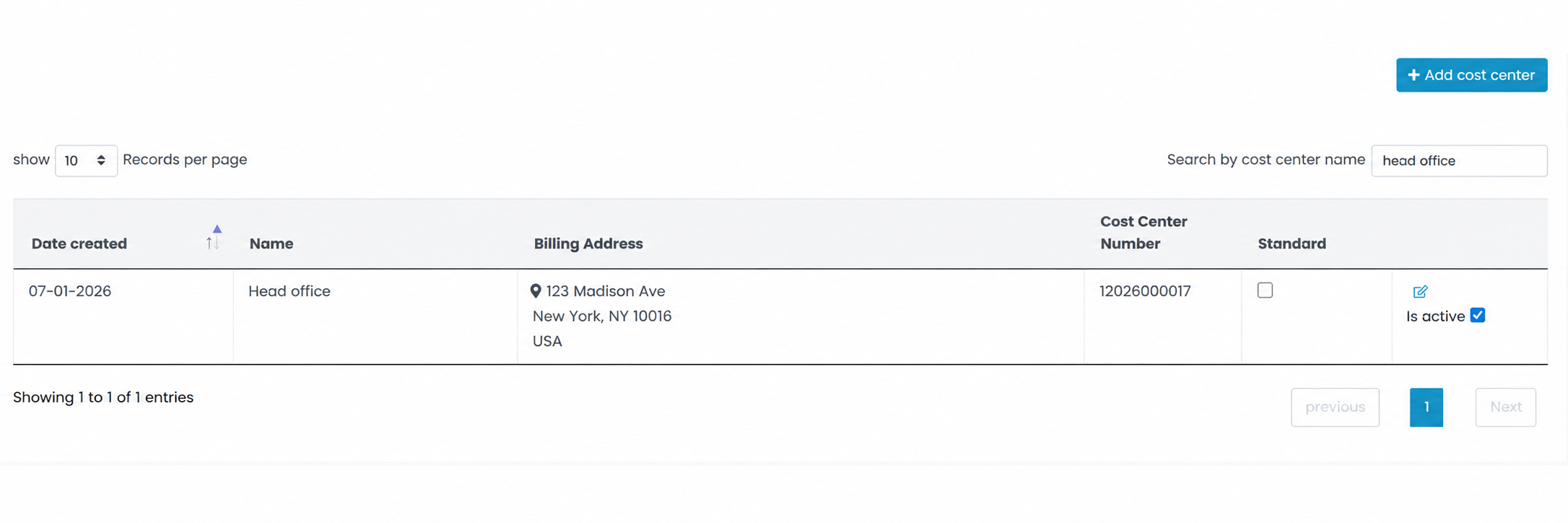
Date Created
- Displays the date when the cost center was originally created.
Name & Number
- Displays:
- Cost center name
- Unique cost center number used for billing and identification
Billing Address
- Displays the billing address associated with the cost center.
Standard Cost Center
- Use the Standard checkbox to set a default cost center for your account.
- The default cost center may automatically be applied during shipment creation.
Active Status
- Enable or disable the cost center using the Is Active toggle.
- Disabled cost centers will not be available during shipment booking.
Edit Cost Center
- Click the blue pencil icon to update existing cost center information.
Step 3: Select a cost center during shipment booking
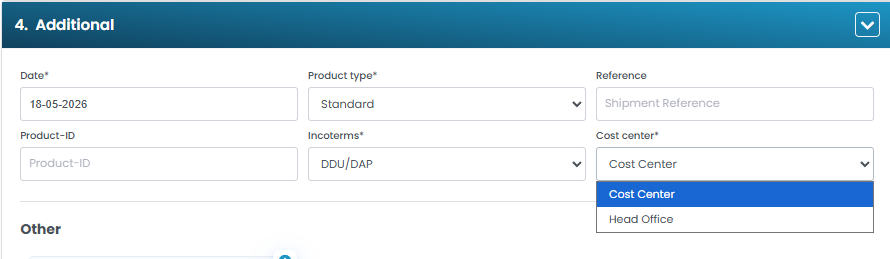
- If multiple active cost centers exist, you can select which cost center should be assigned to a shipment.
How to Select a Cost Center
- Go to the Send a Parcel page.
- Open the Additional section.
- Select the preferred cost center from the available dropdown list.
- The selected cost center will be associated with the shipment for billing and operational tracking purposes.
Tips & Tricks
Use Descriptive Names
- Use clear and meaningful cost center names to simplify billing and reporting.
Set a Default Cost Center
- Configure a standard cost center if most shipments belong to the same department or location.
Keep Contact Details Updated
- Ensure billing email addresses and phone numbers remain accurate for operational communication.
Disable Unused Cost Centers
- Disable inactive or outdated cost centers to keep shipment selection lists organized.
Use Cost Centers for Reporting
- Cost centers help improve shipment cost tracking, department budgeting, and financial reporting.
This guide is about the customer portal. No account yet? Create one for free.
Still stuck?
Our support team is here for you 24/7.