
My Address Book
An organized Address Book helps streamline shipment creation by allowing you to store, manage, and reuse sender and receiver contact details.
The Address Book also supports bulk uploading for importing large customer or contact lists.
Using the Address Book reduces manual data entry and improves shipment creation efficiency.
Open the My Address Book page from the left-side menu or directly at transportal.parcelinternational.com/user/addressbook.
Step 1: Manage your saved contacts
- The All Addresses section displays all saved sender and receiver contacts.
- Use this section to manage and maintain your address database.
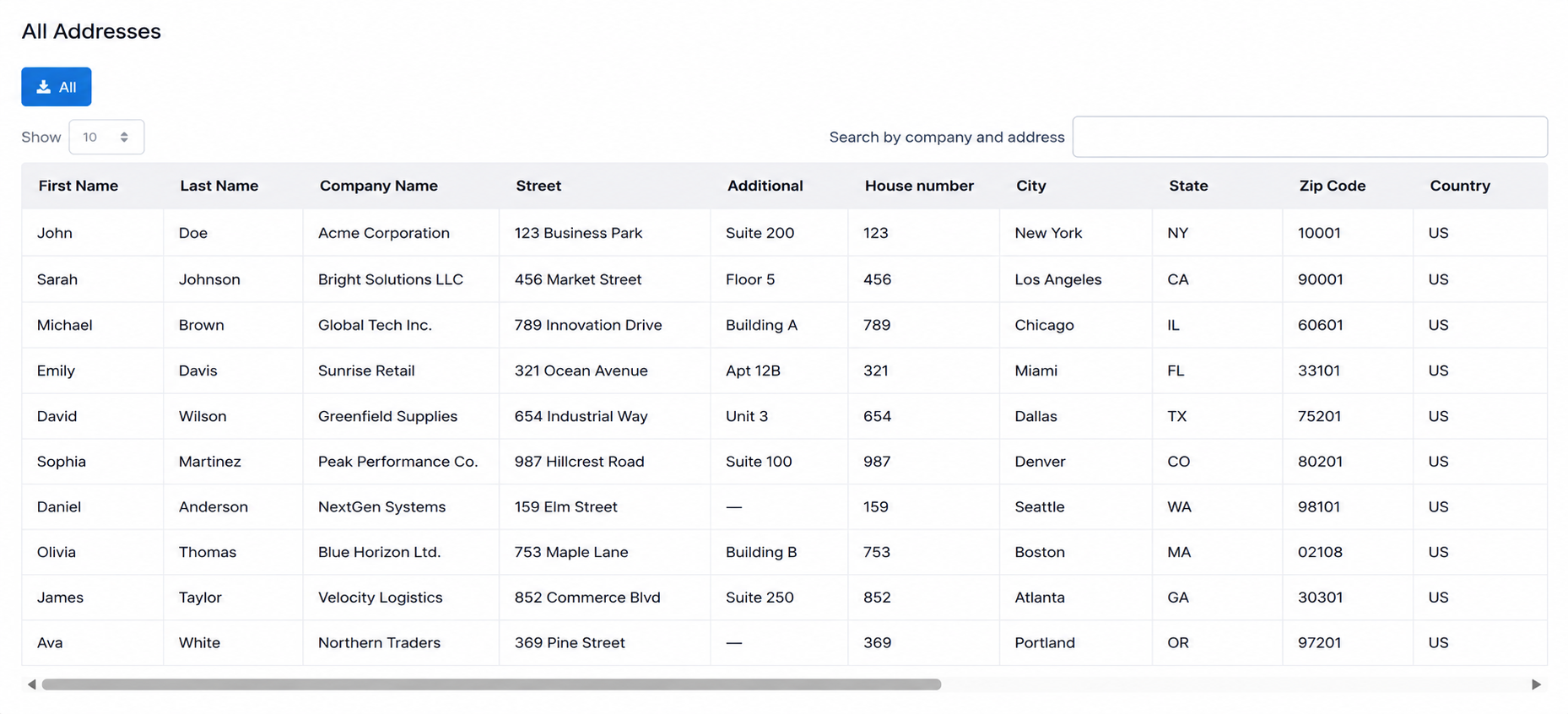
Search & Filter
- Use the search bar to quickly locate contacts by:
- Company name
- Contact person
- City
- Zip code
- Search and filtering help manage large address databases efficiently.
Download All Addresses
- Click the blue Download icon to export the full address database.
- Exported files can be used for:
- Offline backups
- Reporting
- Data migration
- Bulk editing
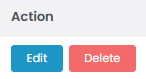
Edit Contact
- Use the Edit action to update saved contact information.
- Common updates may include:
- Phone numbers
- Company details
- Office addresses
- Email addresses
Delete Contact
- Use the Delete action to remove outdated or unused contacts.
- Keeping the address book clean improves shipment accuracy and operational efficiency.
Step 2: Bulk upload addresses
- The Upload Addresses tool allows you to import multiple contacts at once.
- Bulk uploads are recommended for users managing large customer or shipment databases.

Download Sample Templates
- Download the provided sample Excel or CSV templates before preparing upload files.
- The template structure and column headers must remain unchanged.
- Using the provided templates ensures uploaded data maps correctly during import.
Upload Address File
- Click the Browse button to select the completed upload file.
- After selecting the file, click Upload to begin the import process.
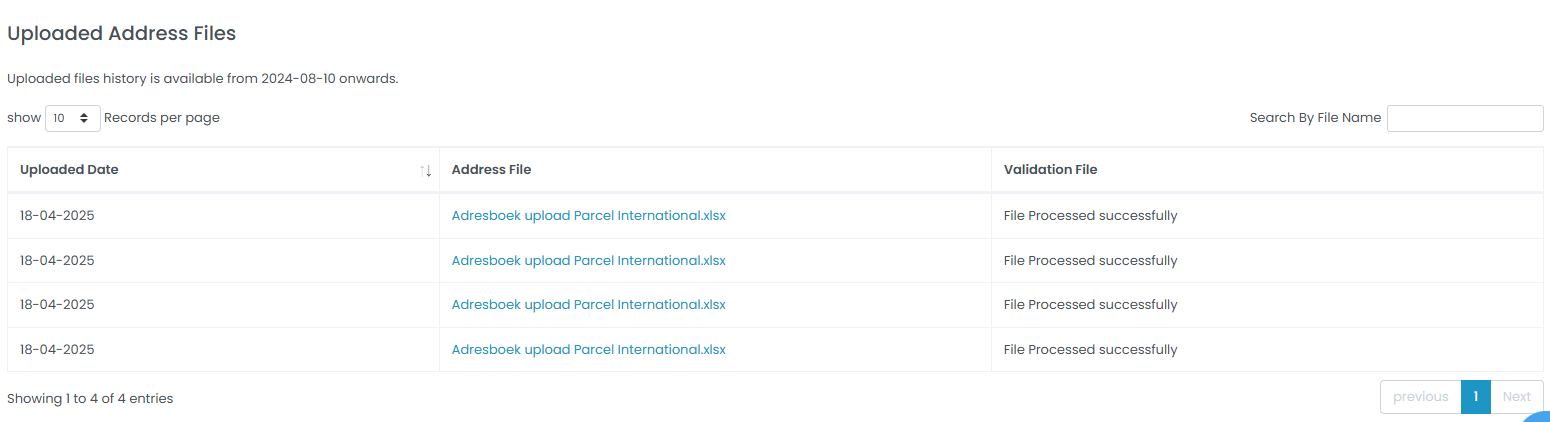
Upload History
- The upload history table tracks all previous address imports.
- Review the Validation File column to check upload results.
- Upload statuses may include:
- Processed successfully
- Validation errors
- Failed uploads
Step 3: Review validation errors
- If an upload contains errors, download the validation file.
- The validation file identifies:
- Incorrect rows
- Missing fields
- Invalid values
- Formatting issues
- Correct the highlighted issues and upload the file again.
Tips & Tricks
- Always use the provided sample templates for address uploads.
- Do not modify template column names or structure.
- Ensure all phone numbers include the correct country code.
- Verify zip codes match the correct destination country format.
- Clean and accurate address data helps prevent shipment delays and delivery issues.
- Regularly remove outdated contacts to keep your address book organized.
- Export and back up your address database periodically.
- Use bulk upload functionality when migrating customer databases from other systems.
This guide is about the customer portal. No account yet? Create one for free.
Still stuck?
Our support team is here for you 24/7.