
Emails
The Emails section provides a built-in communication interface within the platform, allowing you to manage correspondence directly with the Parcel International Team.
Open the Emails from the left-side menu or directly at transportal.parcelinternational.com/email/emails.
Step 1: Navigate the email menu
- The left-side menu helps organize and manage your email communication.
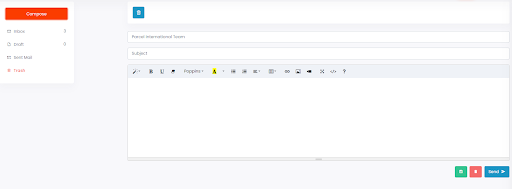
Compose
- Click the orange Compose button to create and send a new message.
- Use this option to contact the Parcel International Team directly from the platform.
Inbox
- The Inbox section displays all received messages.
- Incoming replies, support updates, and communication history are available here.
Draft
- The Draft section stores messages that have been started but not yet sent.
- Drafts allow you to continue editing unfinished messages later.
Sent Mail
- The Sent Mail section contains a history of successfully sent messages.
- Use this section to review previous communications and sent requests.
Trash
- The Trash section stores deleted messages.
- Messages in Trash can be reviewed before permanent removal if supported.
Step 2: Compose and send a message
- Click the Compose button to open the message editor.
- Enter the required information including:
- Subject
- Message content
- Attachments (if supported)
- Review the message before sending.
- Click the Send button to deliver the message.
Step 3: Manage email communication
- Use the mailbox sections to organize and track communication history.
- Monitor replies and support responses from the Parcel International Team.
- Review sent messages when checking previous requests or discussions.
Tips & Tricks
Keep Subjects Clear
- Use meaningful subject lines to help identify requests quickly.
- Example subjects:
- Shipment Delay Inquiry
- Invoice Request
- Pickup Issue
Review Drafts Before Sending
- Always review draft messages before sending to avoid incomplete communication.
Check Inbox Regularly
- Monitor your Inbox frequently for updates, shipment responses, or support replies.
Organize Communication History
- Use Sent Mail and Trash sections to manage previous communication records efficiently.
Include Shipment References
- When contacting support, include shipment references or Airwaybill Numbers whenever possible to speed up assistance.
This guide is about the customer portal. No account yet? Create one for free.
Still stuck?
Our support team is here for you 24/7.