

This guide covers the full booking process in a simple, visual way. Watch the video for a fast walkthrough, or read the step-by-step screenshots below to learn exactly which fields to complete and what to look out for.
1. Add sender
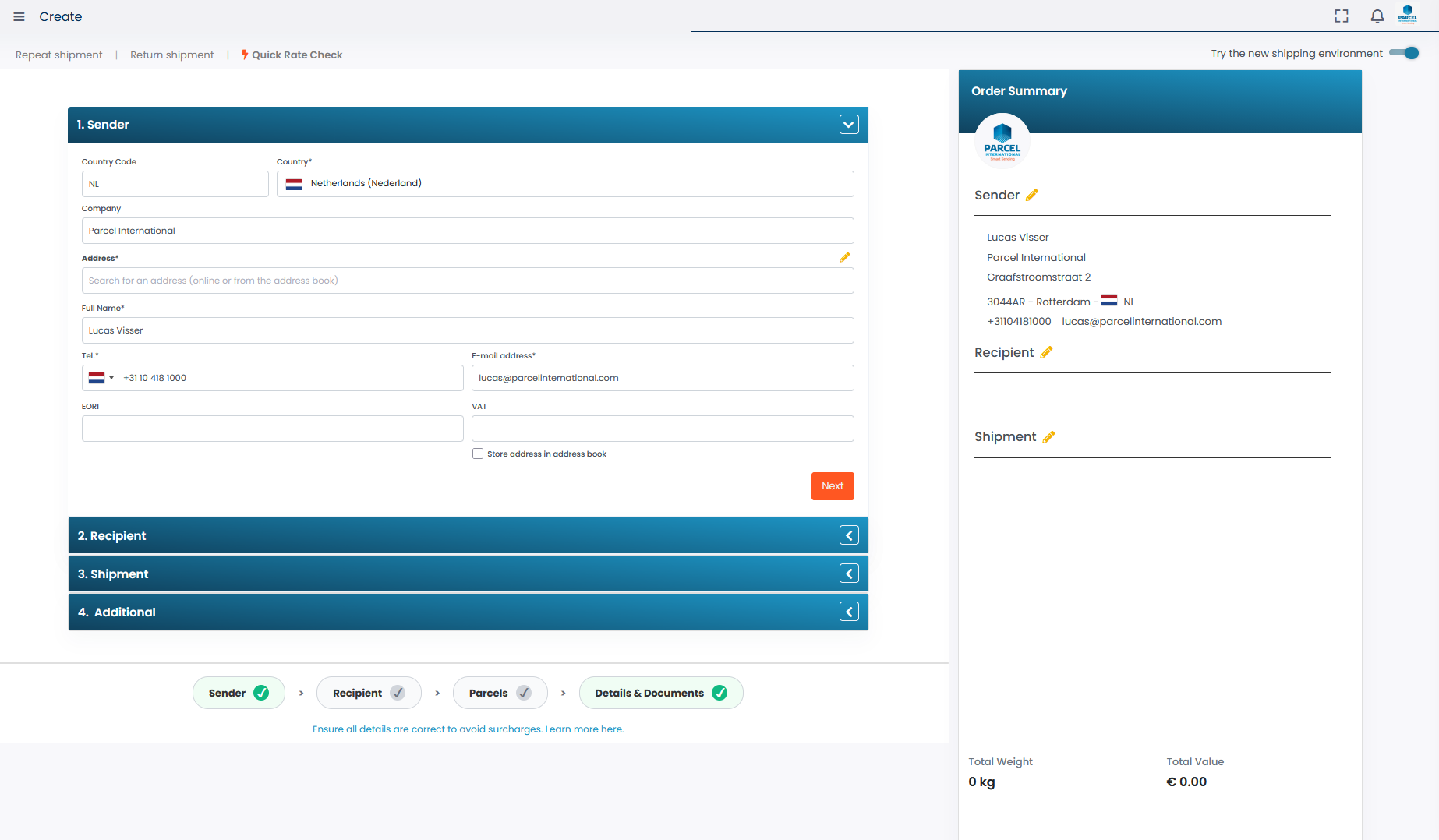
Start with the sender's information. Select the country and enter the company name, address, and contact details. Check the phone number and email address; these will be used for notifications and label communication. Tip: Check "Store address in address book" if you use this address frequently.
2. Add recipient
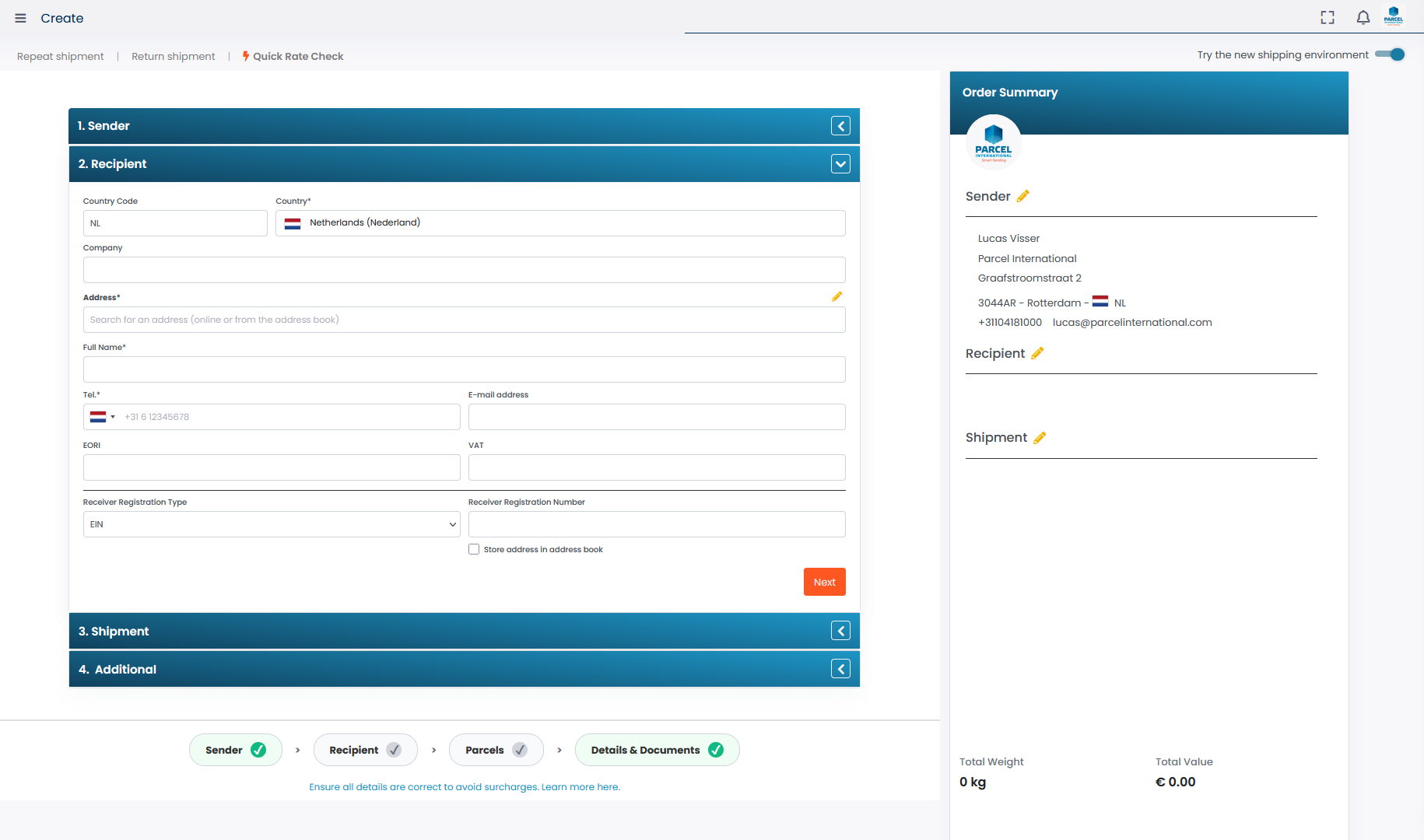
Open the Recipient panel and enter the recipient's address information. Optionally, add VAT/EORI if required for customs. Always check the country code and postal code format. Incorrect addresses will cause delays.
Ready to complete your shipment?
Use our step-by-step tool. You can always make changes later before labeling.
3. Specify shipment
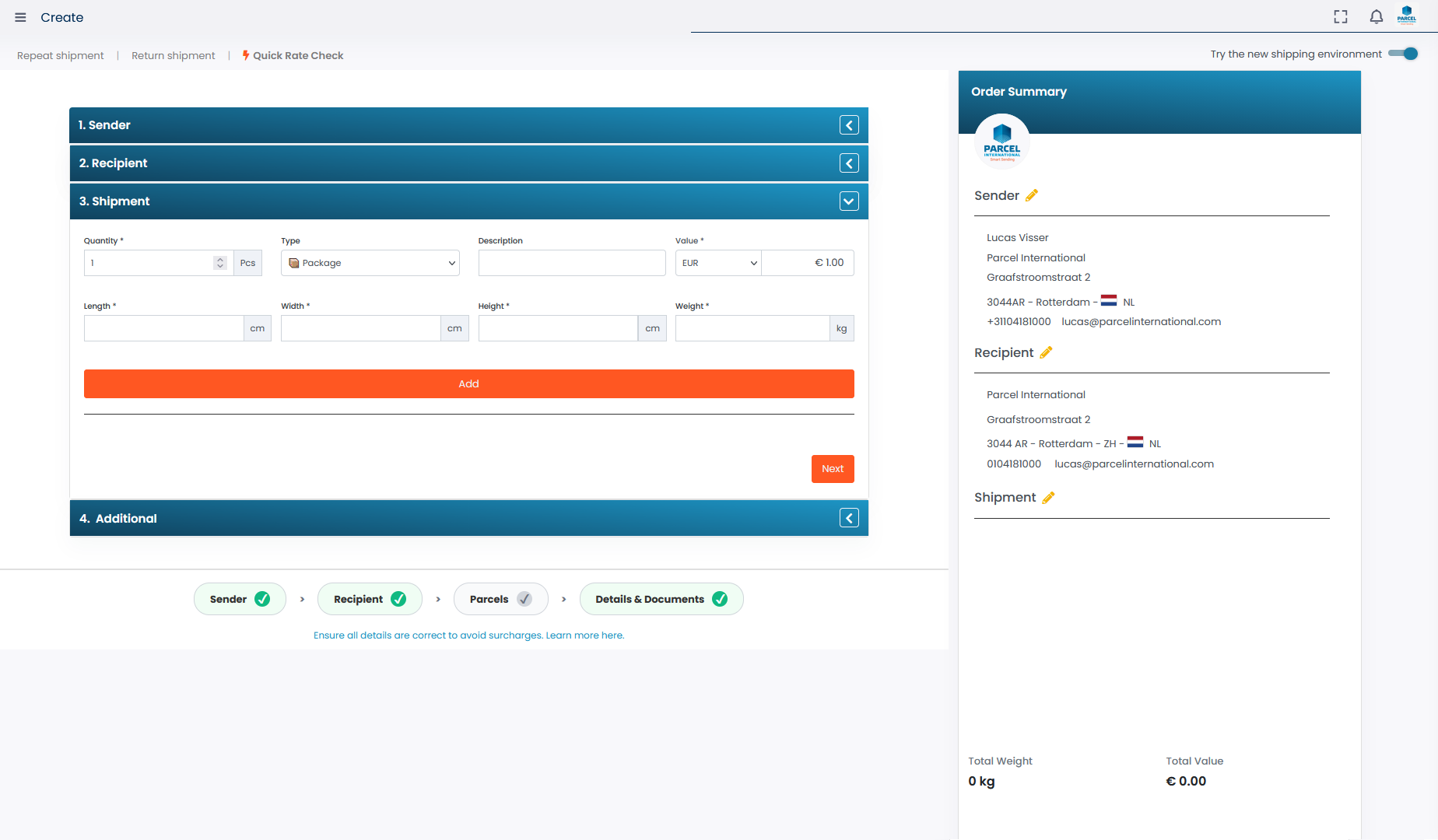
Enter the number of packages, select the type, and optionally provide a description and declaration value. Then measure the length, width, height, and weight. Click Add to add the shipment to the order.
4. Overview and confirmation
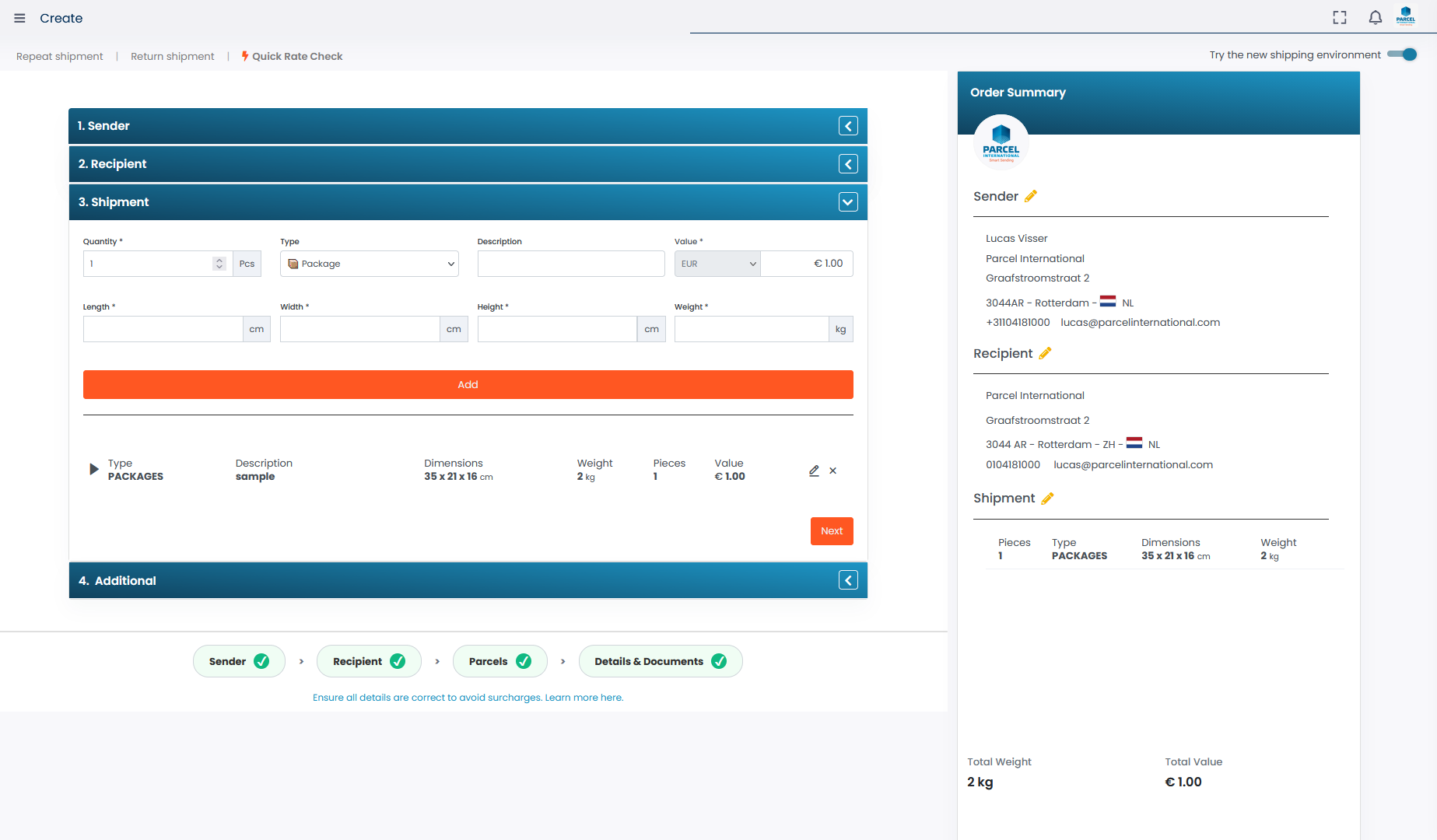
After adding, a summary of the calculated dimensions and values will appear. Review the list and adjust it as needed using the pencil icon. Then click Next to continue.
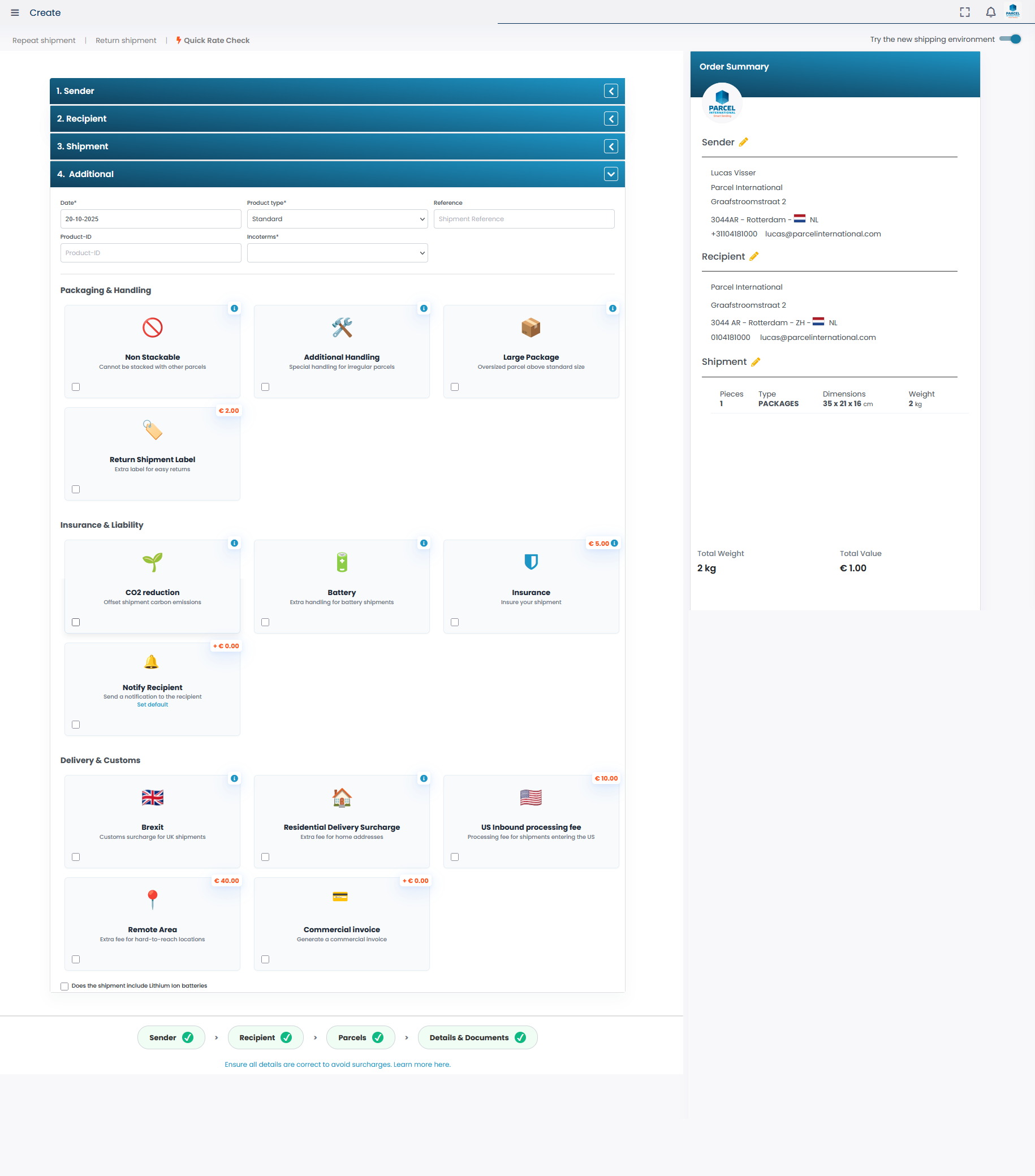
5. Additional options & finalizing
In Additional, you can choose additional services such as insurance, battery handling, or a commercial invoice. Once all steps are completed, you can confirm the shipment and download the label.
Need help booking?
Check out our FAQs or contact Support directly.