
Pickup Requests
The Pickup Requests page allows you to schedule, monitor, modify, and manage shipment pickup requests with different carriers.
Using the pickup dashboard helps organize shipment collections efficiently and provides full visibility into pickup statuses and carrier operations.
Open the Pickup Requests from the left-side menu or directly at transportal.parcelinternational.com/pickuprequest/index.
Step 1: Track scheduled pickups
- The Scheduled Pickups section displays all upcoming carrier collection requests.
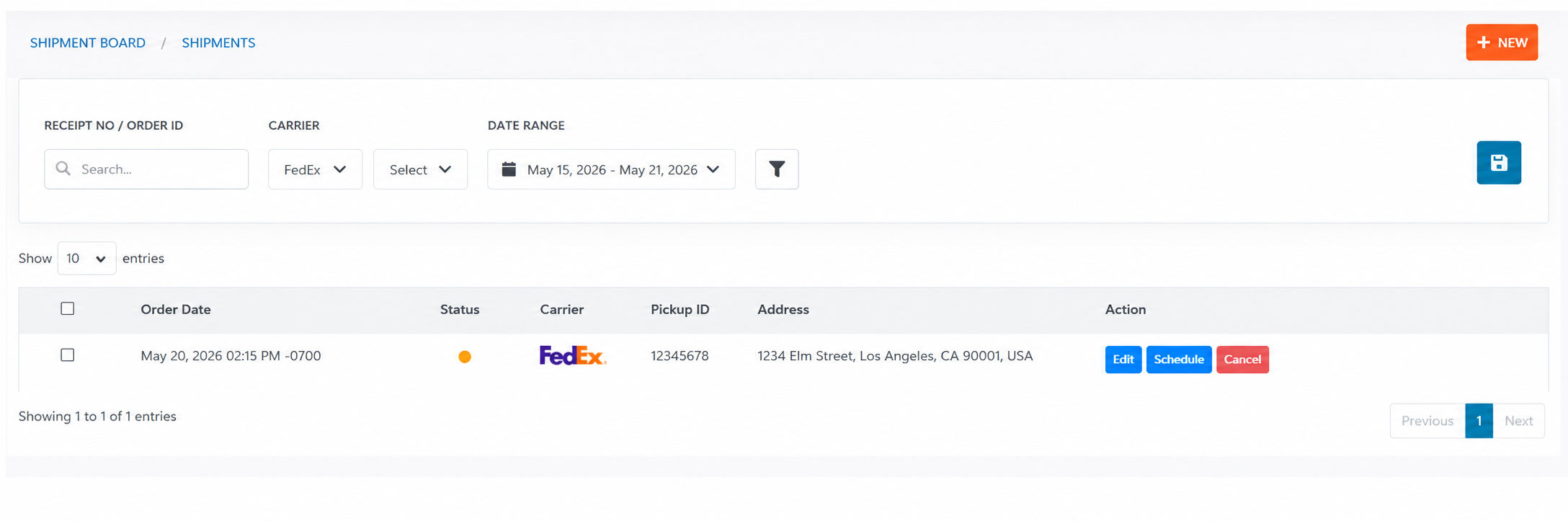
Pickup Details
- Each pickup request displays important operational information including:
- Pickup Date
- Pickup Time Window
- Carrier
- Pickup ID
- Pickup Address
- Pickup Status
Pickup Status
- The status indicator provides visibility into the current progress of the pickup request.
- Common statuses may include:
- Picked
- Waiting
- Unknown
Archived Pickups
- Switch to the Archive tab located at the top-left corner of the page to review completed or historical pickup requests.
Step 2: Search and filter pickup requests
- The pickup dashboard includes multiple filtering tools for managing large numbers of pickup requests.

Search Bar
- Search for pickup requests using:
- Pickup ID
- Pickup Address
Carrier Filter
- Filter pickup requests by specific carrier names.
Status Filter
- Filter pickup requests by current pickup status.
Date Range Filter
- Use the calendar selector to filter pickup requests within a selected timeframe.
Download Filtered Requests
- Click the download icon to export filtered pickup request records.
Step 3: Create a new pickup request
- To schedule a new shipment collection, click the orange + Add button located at the top-right corner of the page.
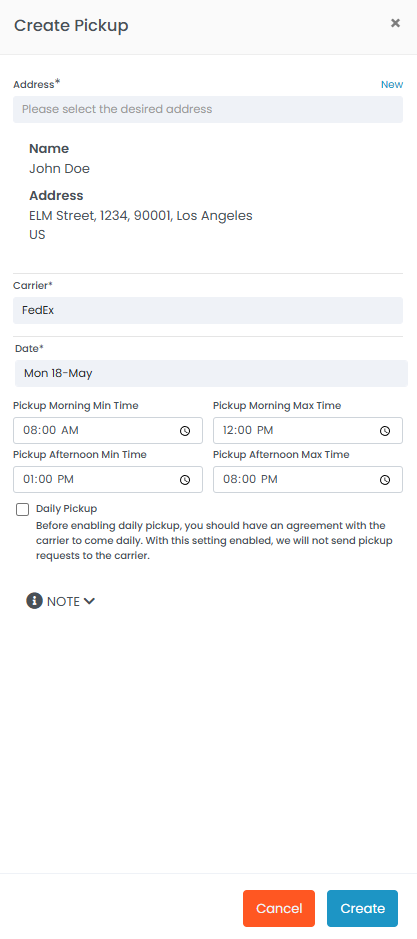
Address
- Select the pickup address from the dropdown list.
- If the required address does not exist, click New to create a new address entry.
Carrier
- Select the preferred shipping carrier from the dropdown list.
- Example carriers may include:
- FedEx
- DHL
- GLS
- UPS
Pickup Date
- Select the preferred shipment collection date.
Pickup Morning Time
- Enter the earliest available pickup time for the carrier driver.
Pickup Afternoon Time
- Enter the latest available pickup time before the location closes.
Daily Pickup
- Enable this option only if you have a daily pickup agreement with the selected carrier.
- Enabling this option prevents individual pickup requests from being sent manually.
Submit Pickup Request
- Click the blue Submit button to send the pickup request to the carrier.
- After submission, the pickup request will appear in the Scheduled Pickups dashboard.
Step 4: Manage active pickup requests
- The Actions column provides management options for scheduled pickups.
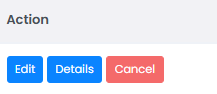
Edit Pickup Request
- Modify existing pickup request details.
View Pickup Details
- View complete information related to the pickup request.
Cancel Pickup Request
- Cancel pickup requests that are no longer required.
Step 5: Manage multiple pickup requests
- The pickup dashboard supports bulk management actions for multiple pickup requests.

Select Pickup Requests
- Use the checkboxes on the left side of the table to select one or more pickup requests.
Download Pickup Requests
- Generate and download documents containing details of selected pickup requests.
Cancel Multiple Requests
- Cancel multiple pickup requests simultaneously if shipments are no longer ready or have been consolidated into another collection.
Reschedule Pickup Requests
- Update the following details for multiple pickup requests at once:
- Pickup Date
- Ready Time
- Closing Time
- Pickup Address
Tips & Tricks
Schedule Pickups Early
- Create pickup requests early in the day to improve carrier scheduling availability.
Verify Pickup Times
- Ensure pickup ready times and closing times are accurate to avoid failed collections.
Use Daily Pickup Carefully
- Enable Daily Pickup only if your carrier account includes an active recurring pickup agreement.
Monitor Pickup Statuses
- Review pickup statuses regularly to track carrier confirmations and completed collections.
Use Bulk Actions for Efficiency
- Use bulk rescheduling and cancellation options when managing large shipment volumes.
Keep Pickup Addresses Updated
- Ensure all pickup addresses are accurate and accessible for carrier drivers.
This guide is about the customer portal. No account yet? Create one for free.
Still stuck?
Our support team is here for you 24/7.